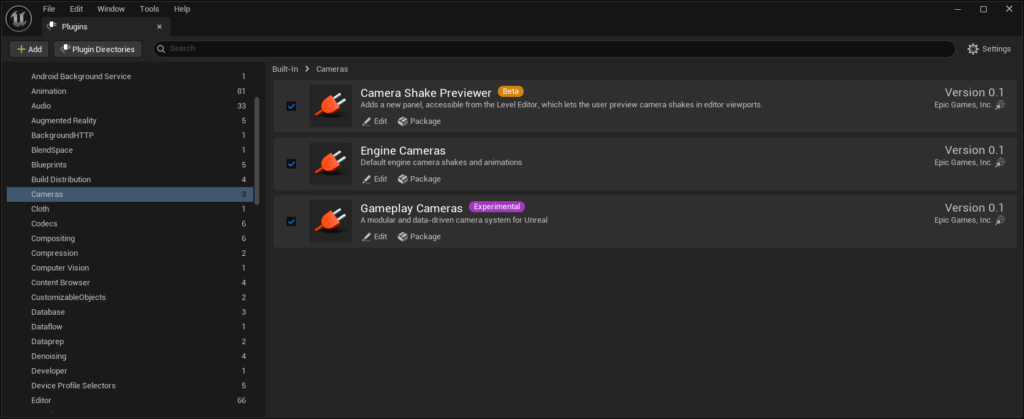
Unreal Engine comes with a basic and currently abandoned version of Gameplay Cameras (GPC). When you look at the Plugin Manager (found at Edit > Plugins) in a “vanilla” project, you should see it in the “BUILT-IN” section, in the “Cameras” sub-category:
This page helps you install the “Revived” version of GPC, fully supported by Brutal Baguette.
From Source (Single Project)
To install the GPC plugin in your Unreal Engine project, follow these steps:
- Make sure there is a
Pluginsdirectory at the root of your project. Create one if needed. It should be next to yourContentandConfigdirectories, among others. - Clone the GPC git repository from GitHub or Sourcehut into
Plugins/GameplayCameras. Alternatively, download an archive of the repository for a version of your choice and unpack it intoPlugins/GameplayCameras. - Launch the Unreal Editor and go to
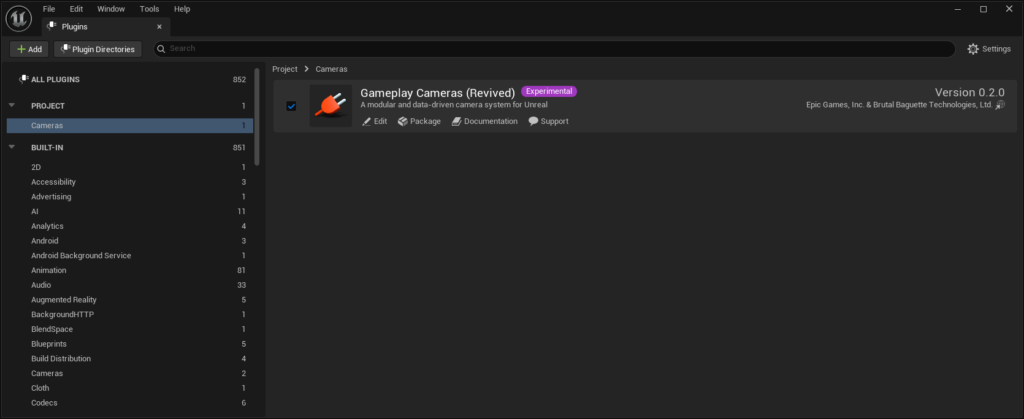
Edit > Pluginsto open the Plugin Manager. You should see, in the “PROJECT” category, that the “Gameplay Cameras (Revived)” plugin is enabled.
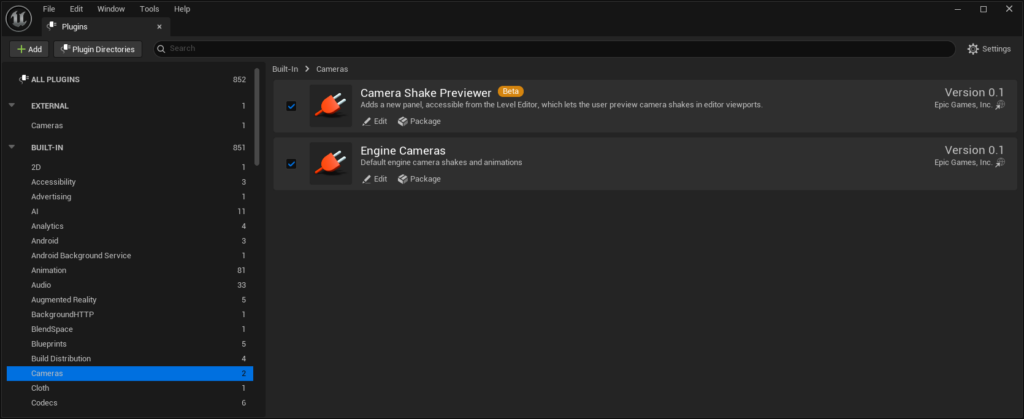
The “vanilla” version of GPC should be gone from the “Cameras” plugins in the “BUILT-IN” section:
From Source (Multiple Projects)
If you need to support multiple projects using the same engine and GPC codebase, you can put the GPC plugin in an external, shared directory.
- Create a directory somewhere for the shared plugins used by your projects. For instance:
D:\Code\UnrealEnginePlugins. - Clone the GPC git repository from GitHub or Sourcehut into a directory called
GameplayCamerasinside that shared directory. Alternatively, download an archive of the repository for a version of your choice and unpack it there. - Open the Unreal Editor, and open the Plugin Manager (found at
Edit > Plugins). Click on the “Plugin Directories” button and add that shared plugins directory:
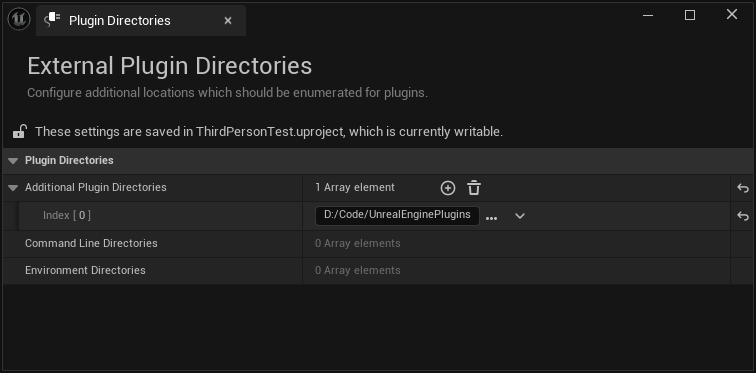
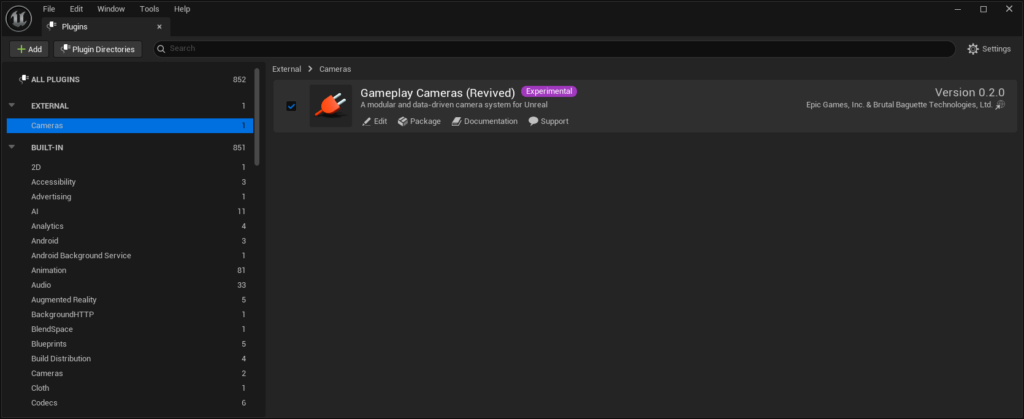
- Close and re-open the Unreal Editor. You should now see, in the “EXTERNAL” section, that the “Gameplay Cameras (Revived)” plugin is enabled.